

🖥️
Selective locking
Choose which monitors to lock. The unlocked screens keep displaying their content — perfect for leaving a presentation running, a video playing, or a livestream visible while you step away.
ScreenBlind selectively locks the monitors you choose — the others stay visible and keep displaying their content, so a presentation, video, or dashboard can carry on while you step away from your desk. Mouse and keyboard input stays captured by the lock.
Windows 10 & 11 (x64) · ~40 MB · No installer required · v1.1.0
A focused privacy tool that does one thing well.
Choose which monitors to lock. The unlocked screens keep displaying their content — perfect for leaving a presentation running, a video playing, or a livestream visible while you step away.
Set a single password. It's hashed with PBKDF2-SHA256 and stored only on your machine. Wrong password? Helpful shake-feedback.
Bubbles, Matrix rain, Flurry, or your own image slideshow take over after the idle timeout — with shifting dark hues so the lock screen never looks dead.
Mouse cursor stays trapped inside locked screens, can't escape to your unlocked monitor. The Windows key is blocked from opening Start.
Clock and date drift to random positions on the screen at intervals — keeps the lock screen alive and avoids burn-in worry.
Single executable, no installer, no background services, no telemetry. Lives quietly in your system tray until you need it.
Pick your screens in a small tray app — the locked ones go dark while the others keep working.
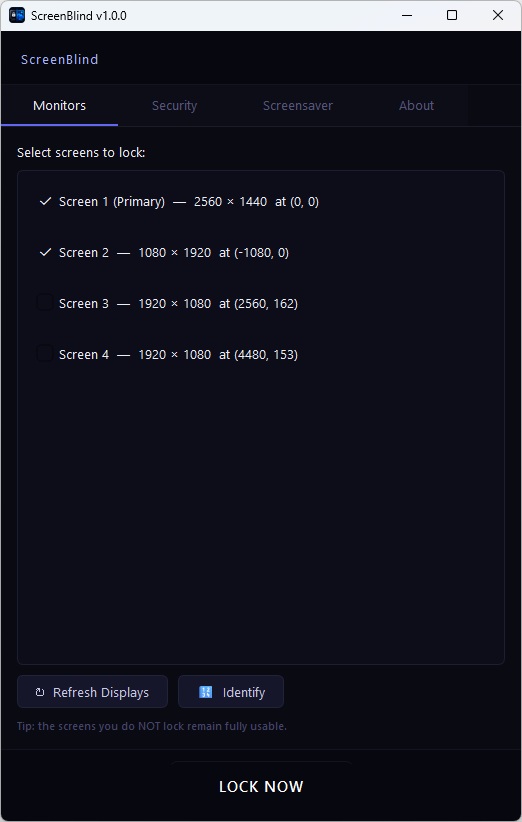
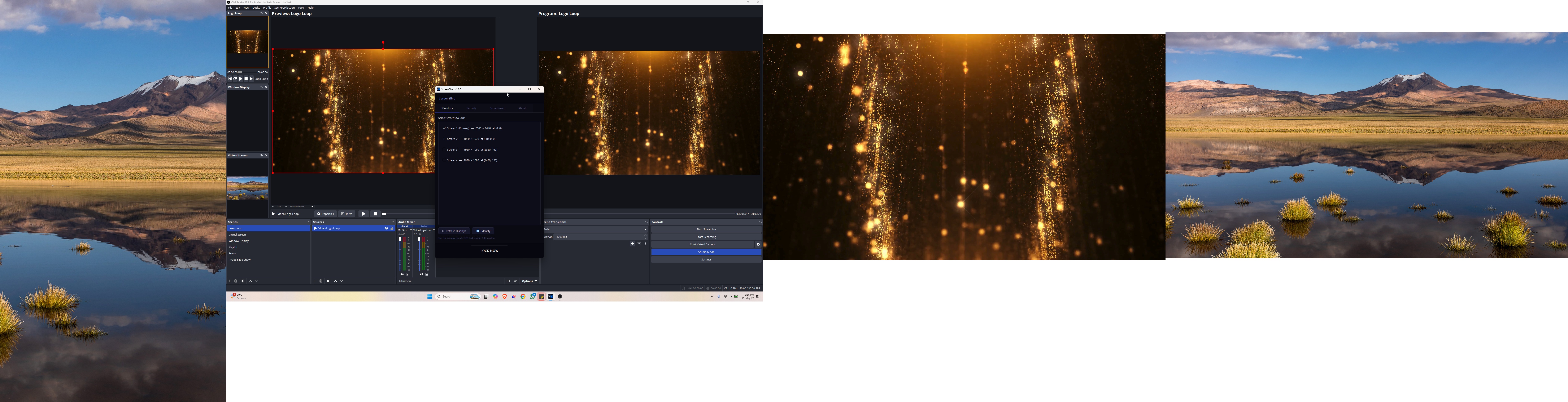
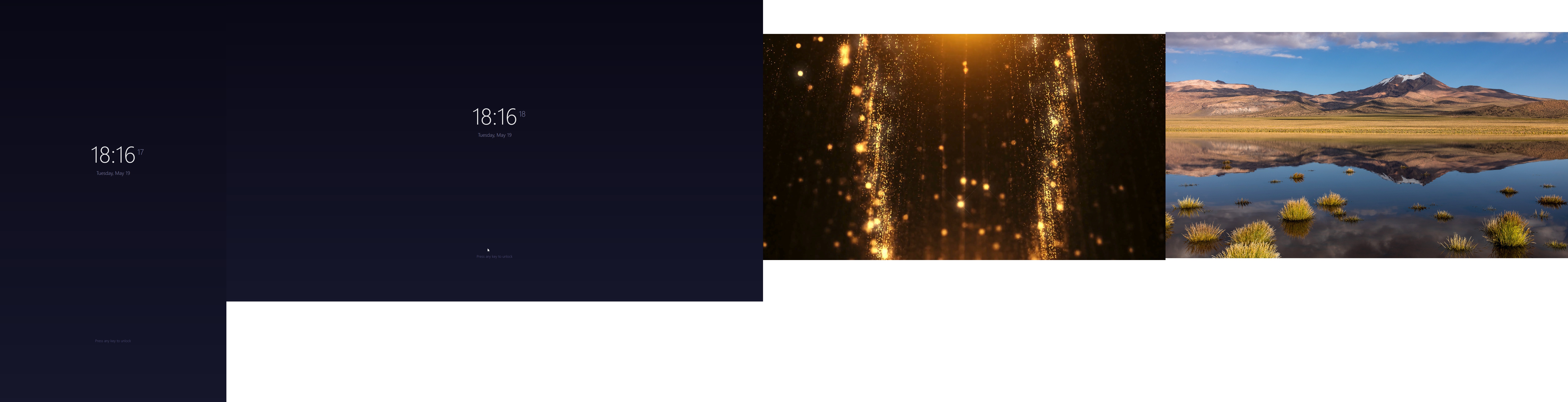
Three clicks from open to locked.
The Monitors tab lists every connected display. Check the ones you want covered — typically your laptop screen and the side monitor, leaving the center one to keep showing whatever's on it.
One time only, in the Security tab. Your password is hashed locally — ScreenBlind never sees it in plaintext and nothing leaves your computer.
Selected screens turn into a quiet, animated lock surface. Move the mouse or press a key on a locked screen to bring up the password prompt. Unlock once — every screen comes back.
ScreenBlind is a focus/privacy tool — it isn't a replacement for the Windows lock screen. Here's what it can and can't do.
The Win+L shortcut is processed by the Windows kernel before any user-mode application can intercept it. No regular app — not even with administrator rights on Windows 11 Home — can reliably block it.
What happens if pressed: the Windows lock screen appears. After entering your Windows password, ScreenBlind's overlay is still active underneath and will require its own password.
Ctrl+Alt+Del is a hardware-level Secure Attention Sequence built into Windows specifically so that no software can ever intercept it. This is a feature, not a bug — and it's true for every third-party lock tool.
What happens if pressed: same as Win+L — the Windows security screen appears. ScreenBlind comes back after dismissal.
Even though those two shortcuts can't be blocked, they don't really weaken security: anyone who triggers them now has to enter both the Windows password and your ScreenBlind password to see the locked screens. That's stronger than either alone.
ScreenBlind is built on top of Windows-specific APIs (cursor clipping, top-most window enforcement, keyboard hooks). The current build targets Windows 10 / 11 on x64. macOS and Linux ports are on the wish list but not currently available.
Want a heads-up when a macOS or Linux build lands? Let me know →
A display-scaling fix that matters if any of your monitors runs above 100%, plus a new screensaver.
On a monitor set above 100% scaling, a blind could cover only part of the screen — leaving the rest of your desktop in plain view — and the trapped mouse cursor could stop short of the edges. On a 2560 × 1440 display at 150%, the blind covered just 44% of the screen.
ScreenBlind is now Per-Monitor-V2 DPI aware and reads each monitor's true pixel bounds from Windows, so blinds cover every display edge to edge at any scaling factor. Change a resolution or scaling setting while locked and the blinds re-fit themselves.
A third built-in animation, inspired by the classic Flurry screensaver: colour-shifting ribbons of particles streaming out from a drifting centre, drawn on black.
Choose it under Screensaver → Animation style. Like the other animations it runs only on the screens you locked, so your working monitors are untouched.
If you previously fixed mis-sized blinds by setting
Properties → Compatibility → Change high DPI settings →
Override high DPI scaling behavior to System (Enhanced)
on ScreenBlind.exe, untick that box now.
A compatibility override outranks the app's own DPI manifest, so leaving it switched on will cause the very problem it used to work around.
The Monitors tab now reports each screen's native resolution together with
its scaling factor — 2560 × 1440 @ 150% rather than the
scaled-down figure it used to show.
Also: the mouse cursor can now reach the last row and column of the locked area, and a harmless Qt font warning no longer prints to the console when running from source.
Download the latest build for Windows 10 and 11 (x64). One file (~40 MB), no installer, no service.
ScreenBlind isn't code-signed — proper certificates start at ~$80/year and I'm keeping the app free.
Here's what to expect the first time you launch the .exe.
SmartScreen flags any unsigned executable downloaded from the web — it's not a virus warning, it just means Windows hasn't seen this binary signed by a known publisher yet.
What to do: click More info, then the Run anyway button that appears. After the first launch, Windows remembers and won't ask again on the same machine.
If you'd rather double-check the file matches the official release, compare its SHA-256 hash against the one published on the release page. On Windows, run:
Get-FileHash .\ScreenBlind.exe -Algorithm SHA256Any mismatch means the file was modified in transit and should not be run.
ScreenBlind is provided "as is", without warranty of any kind, express or implied. By downloading and running this software, you accept full responsibility for any consequences, including but not limited to data loss, lost productivity, hardware misbehavior, or being unable to access a locked screen due to a forgotten password.
The authors and contributors are not liable for any direct, indirect, incidental, or consequential damages arising from the use of this software. ScreenBlind is a privacy / focus utility — it is not a substitute for full disk encryption, the Windows lock screen, or enterprise endpoint protection. Always have a recovery plan in place (a written-down password, access to another admin account, etc.) before relying on it.

ScreenBlind is free and will stay free. If it saves you from someone peeking at your monitor during a coffee run, consider buying me a coffee in return.
Secured by PayPal · any amount welcome
Questions, bugs, or feature requests? Drop a line at info@screenblind.cc.